
The MEP detail library should live in Revit container models
A practical workflow for organizing mechanical and electrical details in governed Revit containers without making engineers hunt for content.
MEP firms rarely have a shortage of details. They have a shortage of details that are easy to find, clearly approved and ready to reuse.
The typical library grows across completed projects, PDFs, DWGs, shared folders and one container model that only the BIM team understands. An engineer knows the detail exists, but not which project contains it or whether that version is still current. By the time the right view is found, it may have been faster to redraw it.
A better foundation is straightforward: store the firm’s standard details as drafting views in dedicated Revit container models, then separate those models by discipline.
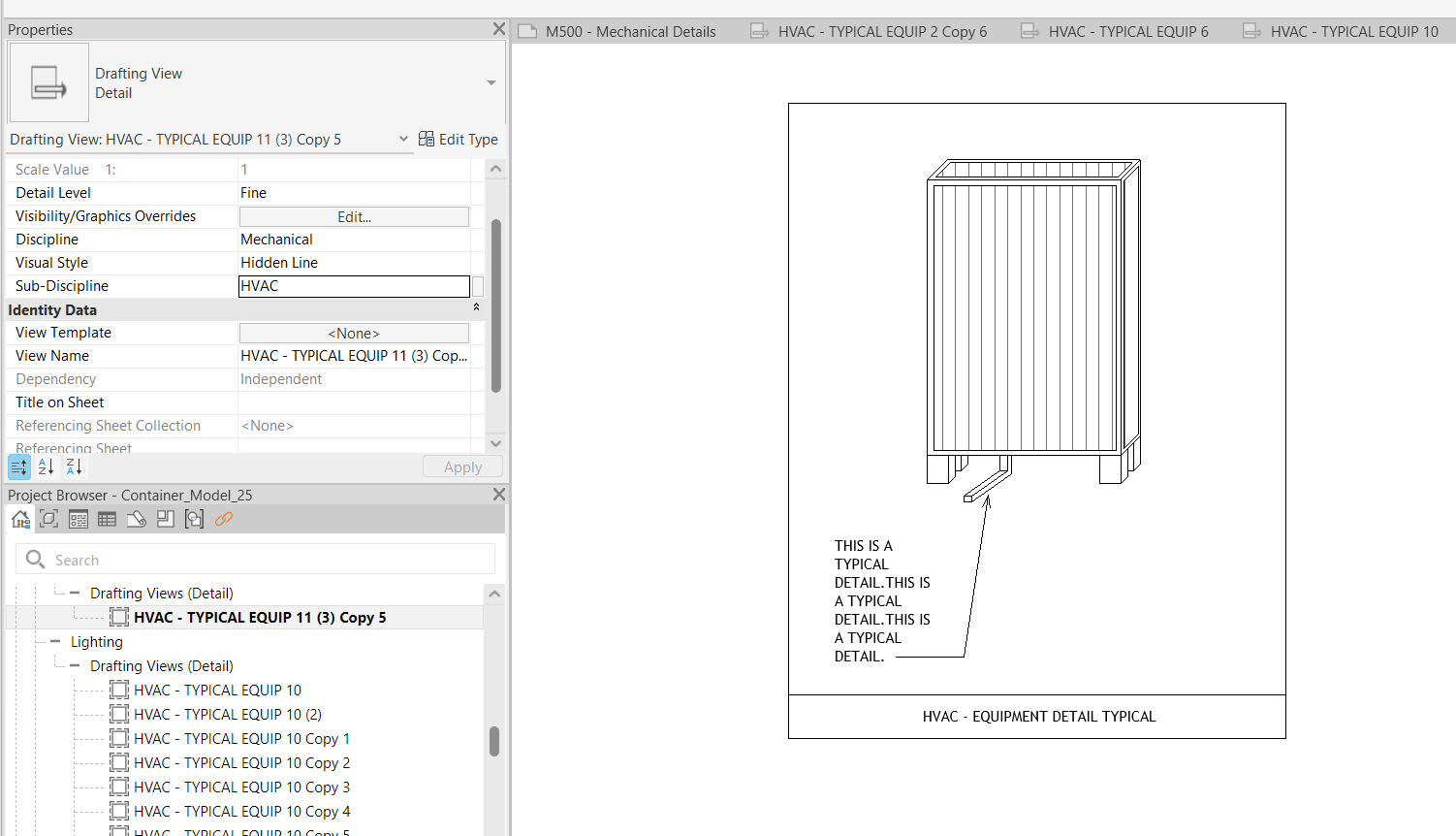
A Revit container model keeps standard details native, editable and organized. Image: Firm Details.
Start with Revit as the source
A drafting view is a natural home for a typical detail because it keeps the content in the same authoring environment used to produce the construction documents. Linework, filled regions, detail components, dimensions and notes remain editable Revit elements. Engineers do not need to learn a separate content-authoring tool or convert a detail every time the standard changes.
That matters operationally. The mechanical engineer who discovers that a valve detail needs another note can update the source in Revit. The electrical engineer revising a typical equipment connection can work with familiar annotation tools. The BIM team can review those changes against the firm’s templates and standards without rebuilding the content in another system.
The container should be intentionally light. It does not need project geometry, levels for a real building or links to live design models. Its purpose is to hold governed drafting views and the supporting annotation families those views require.
Split the library by discipline
One giant MEP container looks simple at first, but it creates unclear ownership and a noisy library. Mechanical engineers should not have to search through electrical one-lines, and electrical teams should not depend on the mechanical content manager to publish an update.
At minimum, establish separate containers for:
- Mechanical
- Electrical
- Plumbing
- Fire protection
Larger firms may divide these further by region, market or content type, but only when someone has clear responsibility for each split. Too many containers recreate the folder problem in a different form.
Each discipline should have an owner and a lightweight publishing standard. Define how views are named, which parameters identify the system and detail type, who can approve a change, and how retired details are marked. A detail library is not governed merely because it is stored in Revit.
Keep the models in the Autodesk cloud
Host the containers in the Autodesk cloud environment the firm already uses—typically Autodesk Construction Cloud, including Forma-connected workflows where applicable. This keeps permissions, version history and access within the platform already used for project delivery.
The practical benefit is not simply cloud storage. It is that the source remains a Revit model. Engineers can open the appropriate container, edit a drafting view and publish the revision using tools and account access they already understand. The firm avoids introducing another authoring platform just to maintain 2D standards.
Cloud hosting also gives distributed teams one source rather than a copied library on every office server. That only works, however, when permissions are deliberate. Most users should consume approved details; a smaller group should edit and publish the source containers.
The native workflow still has a retrieval problem
Container models solve storage and authorship. They do not automatically solve access.
Using Revit alone, an engineer still needs to know which container holds a detail, open that model, inspect similarly named drafting views and transfer the selected view into the active project. Sharing a detail with a colleague often becomes a message containing a model name and instructions about where to look.
That friction is small for one detail and expensive across a firm. It also pushes users back toward old projects, exported PDFs or private copies—the exact fragmentation the container strategy was meant to remove.
The key distinction is this:
- Revit containers should remain the source of truth.
- A retrieval layer should make that source easy to use.
Add Details as the access layer
Details, the product we build alongside BIMdigest, is designed to sit on top of this container-model strategy rather than replace it.
The BIM team connects the firm’s trusted Revit sources and makes their drafting views available through a searchable library. Engineers can browse the firm’s details without opening each container model, and BIM teams can assign relevant details directly to the people who need them. Inside Revit, users can find and place approved views into the active project instead of navigating manually between files.
This preserves the important part of the workflow: Revit remains where details are authored and maintained. Details addresses the weak point—discovery, access and sharing—without asking engineers to redraw content in a separate platform.
The web library is also useful for people who need to review or share content but do not need to launch Revit. That reduces the tendency to export uncontrolled copies merely so someone can see what is available.
A practical rollout
Do not migrate every historical detail at once. Start with one discipline and one trusted container.
- Collect the details that team actually reuses.
- Remove duplicates and project-specific notes.
- Convert the approved set into consistently named drafting views.
- Assign an owner and define the approval process.
- Publish the container to the firm’s Autodesk cloud environment.
- Connect it to Details and test search, assignment and placement with a small group.
- Measure whether engineers reuse the governed views instead of redrawing or searching old projects.
Once that workflow holds, repeat it for the next discipline.
The goal is not a larger library. It is a shorter path from an engineer’s question to the firm’s approved answer: governed in Revit, separated by discipline, stored in the existing Autodesk environment and accessible without a model-opening scavenger hunt.
Frequently asked questions
What is a Revit container model?
It is a Revit model maintained primarily to hold reusable firm content. For a detail library, that content is organized as drafting views rather than project geometry.
Should all MEP details go into one container?
Usually no. Separate mechanical, electrical, plumbing and fire-protection containers give each discipline clearer ownership and keep search results manageable.
Why use drafting views for standard details?
Drafting views preserve Revit linework, text, dimensions and detail components while remaining independent of model geometry.
What problem does the Details plugin solve?
It provides a searchable access and sharing layer over the Revit sources, so users can find, assign and reuse details without manually opening every container model.